
How to create and edit user groups on an Enshrouded server
Last updated:
 Create your Enshrouded server today!
Contents
An Enshrouded dedicated server does not use one common server password. Instead, it uses user groups. Every group has its own name, its own password and its own set of permissions. The password a player enters when joining decides which group they belong to, and the group decides what they can do on the server. This guide explains how to create your own groups and edit the existing ones.
How user groups work
All groups are stored in the userGroups section of the enshrouded_server.json file. A fresh server usually comes with several ready-made groups (for example Admin, Friend, Guest and Visitor), and the exact set can differ depending on the server version. You can edit them, delete them or add as many new groups as you need.
Typical use cases:
an Admin group for you, with the right to kick and ban players;
a Friend group for trusted players who can build and use chests;
a Guest or Visitor group for newcomers who may only explore and fight.
Group settings
Each group is a block in curly braces with the following fields:
| Field | Type | What it does |
|---|---|---|
name | text | The name of the group. It must be unique. |
password | text | The password players enter to join as a member of this group. It must be unique too. |
canKickBan | true / false | Allows members to kick and ban other players. |
canAccessInventories | true / false | Allows members to use chests, factories and other containers. |
canEditWorld | true / false | Allows members to change the terrain and the world outside of bases. |
canEditBase | true / false | Allows members to build, remove constructions and change the terrain inside bases. |
canExtendBase | true / false | Allows members to place, upgrade and remove Flame Altars. |
reservedSlots | number | How many player slots are kept free for this group when the server is otherwise full. |
Players of any group can still explore the world, fight, mine and complete quests. The permissions only limit changes to the world and bases, and access to moderation.
Edit the groups
Open your server in the game panel and stop the server. Wait until it has shut down completely.
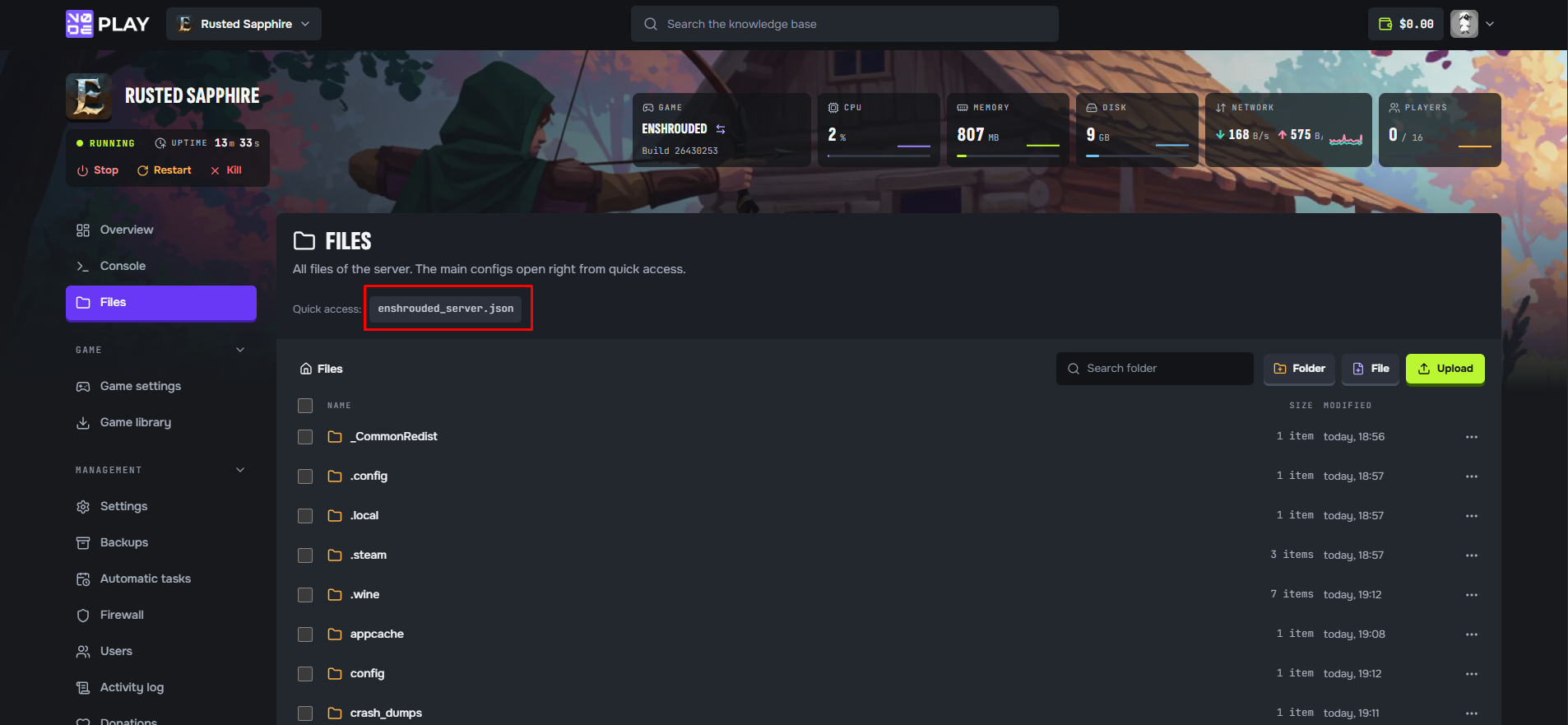
Open the file manager of the panel and find
enshrouded_server.jsonin the server's root folder. If the file does not exist yet, start the server once, stop it again and then open the file: it is created on the first start.Make a backup copy of the file before you change it. A single typo can break the whole configuration.
Open the file in the text editor and scroll down to the
userGroupssection.Change the passwords and permissions you need (see the examples below).
Save the file and start the server.
The server reads the file only when it starts, so always edit it while the server is stopped. Otherwise your changes may be lost or not applied. New permissions apply the next time a player joins.
Example: a set of groups
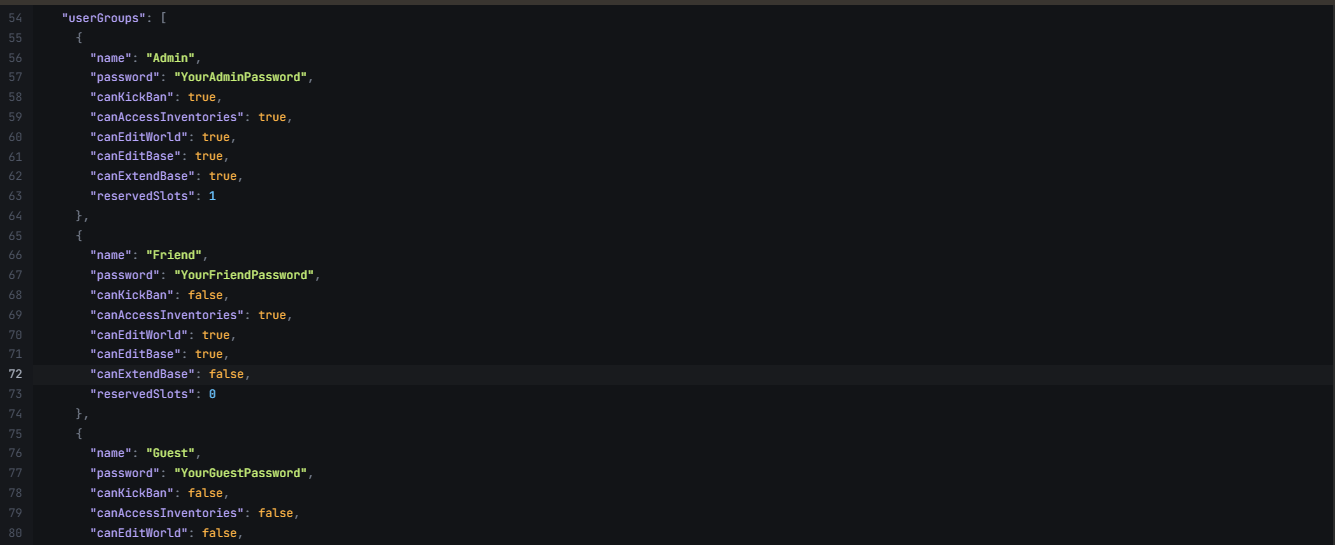
Here is an example of the userGroups section with three groups. Replace the passwords with your own ones.
"userGroups": [
  {
    "name": "Admin",
    "password": "YourAdminPassword",
    "canKickBan": true,
    "canAccessInventories": true,
    "canEditWorld": true,
    "canEditBase": true,
    "canExtendBase": true,
    "reservedSlots": 1
  },
  {
    "name": "Friend",
    "password": "YourFriendPassword",
    "canKickBan": false,
    "canAccessInventories": true,
    "canEditWorld": true,
    "canEditBase": true,
    "canExtendBase": false,
    "reservedSlots": 0
  },
  {
    "name": "Guest",
    "password": "YourGuestPassword",
    "canKickBan": false,
    "canAccessInventories": false,
    "canEditWorld": false,
    "canEditBase": false,
    "canExtendBase": false,
    "reservedSlots": 0
  }
]
In this example:
players who join with
YourAdminPasswordget full rights and one reserved slot;players who join with
YourFriendPasswordcan use chests and build, but cannot place Flame Altars or kick anyone;players who join with
YourGuestPasswordcan only explore, fight and mine.
Add a new group
Stop the server and open
enshrouded_server.jsonin the text editor.In the
userGroupssection, copy an existing group from its opening{to its closing}.Paste the copy right after that group and put a comma between the two blocks.
Give the new group a unique
nameand a uniquepassword, then set the permissions you want.Save the file and start the server.
For example, a moderator group that can kick and ban but cannot change the world:
{
  "name": "Moderator",
  "password": "YourModeratorPassword",
  "canKickBan": true,
  "canAccessInventories": true,
  "canEditWorld": false,
  "canEditBase": false,
  "canExtendBase": false,
  "reservedSlots": 0
}
Remove a group
Delete the whole block of the group, from { to }, together with the extra comma. The last block in the list must not have a comma after the closing brace.
Reserved slots
reservedSlots keeps places free for a group so that its members can join even when the server looks full to everyone else. Reserved slots are taken from the total number of slots set by slotCount (the maximum is 16 players). For example, with "slotCount": 16 and 2 reserved slots for the Admin group, the server looks full to other players at 14 players, and the last 2 slots stay available for admins.
How players join with a group
A player finds the server in the server list or connects to it, and the game asks for a password. They enter the password of the group they should join. There is nothing else to select: the password alone defines the group. Give each password only to the people who should have these rights.
Common mistakes and tips
Do not leave an important password empty. If a group has an empty password, anyone who connects can end up in that group. Never leave the password of a group with powerful permissions empty.
Names and passwords must be unique. Two groups with the same name or the same password can make the server refuse the configuration.
reservedSlotsis a number, nottrueorfalse. Write"reservedSlots": 1.Permissions are written without quotes:
trueandfalse. Text values such as the name and the password are in double quotes.Commas matter. Put a comma between the fields of a group and between the groups, but not after the last field or the last group.
Be careful with
canEditWorldandcanEditBase. A player with these rights can quickly destroy a base you built over many hours. Give them only to people you trust, and make regular backups of the world.If the server does not start after your changes, check the JSON syntax or restore the backup copy of
enshrouded_server.json.
FAQ
Can I change the groups while the server is running?
No. Stop the server, edit the file, save it and start the server again.
How do I become an admin?
Join the server with the password of the group that has the admin permissions (by default it is the Admin group). Set your own strong password for this group first.
How many groups can I create?
You can add as many groups as you need, as long as each has a unique name and password.